
Getting Started with btns.ai
1. Install the Extension
Open Google Chrome on your desktop computer. btns.ai is a Chrome-only extension and is not available on mobile browsers.
Visit the [Chrome Web Store](https://chromewebstore.google.com) and search for btns.ai, or use the direct link provided on our About page.
Click Add to Chrome and confirm the permissions prompt. The extension only requests access to the sites you use it on — nothing runs in the background.
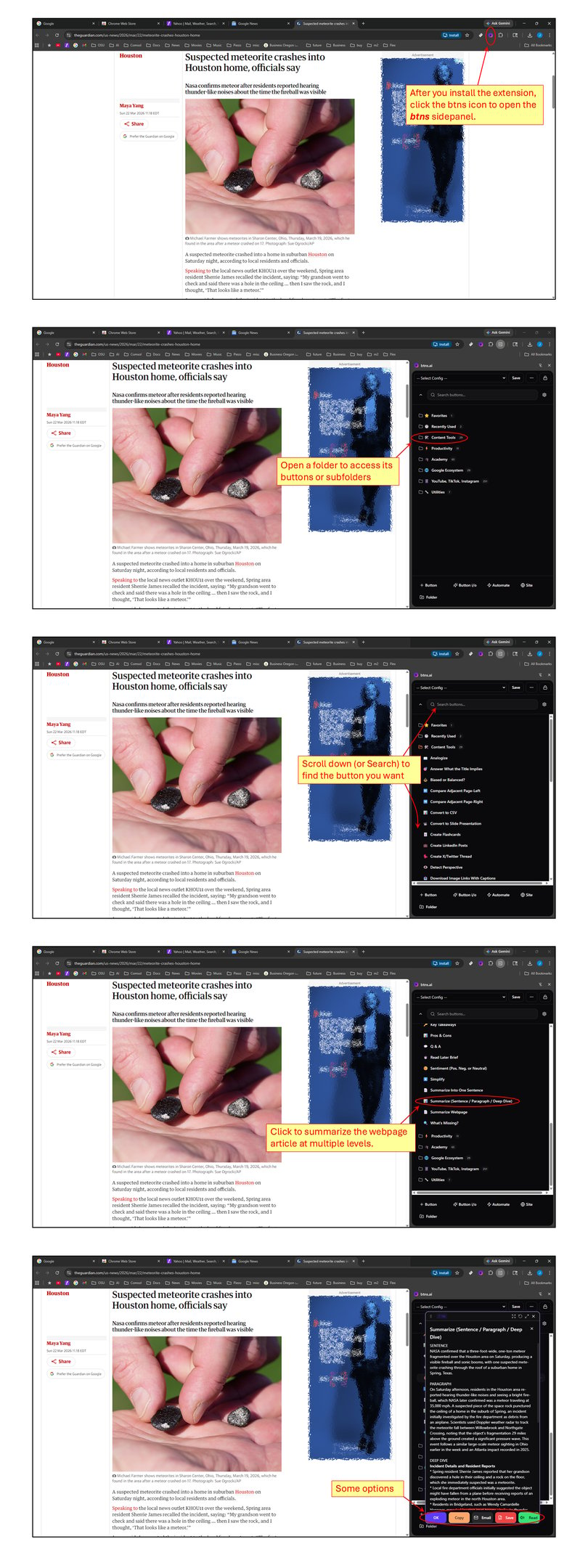
Once installed, you'll see the btns.ai icon in your Chrome toolbar. Click it to open the sidebar, or press `Ctrl + B` (Windows) / `⌘ + B` (Mac) to toggle it.
2. Sign In
Open the sidebar and click Sign in with Google. A popup will appear to authenticate with your Google account.
After signing in, you'll be prompted to start a subscription. btns.ai costs $4.99/month with a metered AI usage fee billed separately based on actual consumption.
Payment is handled securely via Stripe. btns.ai never sees or stores your card details.
You can cancel anytime — no contracts, no commitments. See our Pricing page for details.
3. Understanding the Sidebar - The sidebar is your control center. Everything in btns.ai is organized as buttons grouped into folders. Here's what you'll see (see image below):
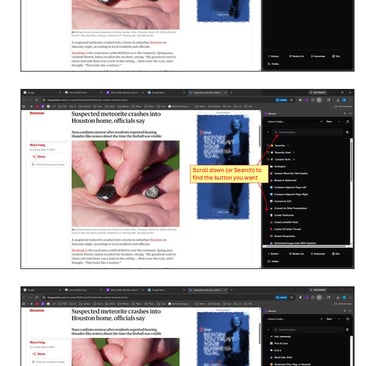
Search bar — Instantly find any button by name. Type a keyword and matching buttons appear in real time.
Folders — Buttons are organized into collapsible folders by category (Content, YouTube, TikTok, Instagram, College 101, Online Learner, Productivity, Google Apps, etc.). Click a folder to expand or collapse it.
Favorites folder — Pin your most-used buttons here for quick access. Right-click any button and choose "Add to Favorites."
Recently Used folder — Automatically tracks your last-used buttons so you can quickly re-run them.
4. Using Buttons - Every button performs a single, specific action. Just click it and the result appears instantly in the sidebar overlay. No configuration needed (see image below).
Types of Buttons
AI buttons — Send the current page content to an AI model and return a result (e.g., Summarize, Create Flashcards, Generate Quiz). These use your metered AI balance.
Action buttons — Perform an instant on-page action with no AI cost (e.g., Speed 2x, Loop Video, Toggle Captions, Like, Save, Follow).
Launcher buttons — Open a Google app or external tool in a new tab (e.g., Google Docs, Sheets, Calendar).
Button Context Menu
Right-click (or long-press) any button to access options like Add to Favorites, Edit (rename, change icon, modify the AI command), or Delete. You can fully customize buttons to fit your workflow.
5. Content Tools (Any Webpage)
Navigate to any webpage and open the sidebar. The Content folder contains 25+ buttons that work on any site:
Summarize — Get a concise summary of the page
Simplify — Rewrite content in plain language
Key Highlights — Extract the most important points
Factcheck — Verify claims against known information
Detect Bias — Analyze the content for bias or slant
Create Flashcards — Auto-generate study flashcards
Generate Quiz — Build a practice quiz from the content
Explain Like I'm 5 — Ultra-simple explanation
Compare Documents — Upload or paste a second document to compare
Etc.
6. YouTube / TikTok / Instagram Tools (200+ Buttons) - Folders unlock a set of video tools:
Playback Controls
Positioning - Loop parts of the video, Jump to chapters, Skip intro, Speed
Audio - Mute all other tabs, Adjust volume up or down by half, Toggle captions on/off
Etc.
AI-Powered Analysis
Key Notes — Timestamped notes from the video transcript
Practice Quiz — Auto-generated quiz based on the video
Study Guide — Structured study material from the lecture
Flashcards — Spaced-repetition-ready cards from the content
Credibility Rating — AI assessment of source reliability
First Principles — Break the topic down to fundamentals
Counterarguments — Generate opposing viewpoints
Research Questions — Suggest academic research angles
Legitimacy - Factcheck, Credibility, Counter arguments, What is missing, Bias
Summarize - Sentence, Paragraph, Deep dive
Etc.
9. College 101 Mode (25+ Buttons) - Purpose-built tools for college students:
Study Guide Generator — Create structured study guides from any content
Flashcard Builder — Generate flashcards from lectures, readings, or notes
Lab Report Helper — Structure and improve lab reports
Essay Improver — Get feedback and suggestions on essays
Exam Prep — Practice tests, cram sessions, and review material
Citation Builder — Format citations in APA, MLA, Chicago, and more
Grade Recovery Plan — Calculate what you need on remaining assignments
Etc.
10. Online Learner Mode (35+ Buttons) - Designed for self-paced and online course students:
Course Roadmap — Plan your path through a course
Weekly Sprint Planner — Break coursework into manageable weekly goals
Catch-Up Calculator — Figure out how to get back on track
Assignment Decoder — Break down assignment requirements
Discussion Post Helper — Draft thoughtful discussion board responses
Etc.
11. Productivity & Google Ecosystem
AI Assistant & Coach
The AI Assistant lets you type any freeform command or question. The AI Coach provides guided, interactive learning overlays tailored to the content you're viewing.
Google App Launchers
Quick-launch buttons for 25+ Google apps organized by category — Docs, Sheets, Slides, Drive, Calendar, Gmail, Maps, Translate, Scholar, and more. One click opens the app in a new tab.
Google Drive Integration
Some AI buttons can export results directly to Google Docs, Sheets, or Slides. When you use this feature, btns.ai only accesses files it creates — never your existing Drive files. The `drive.file` scope ensures your data stays private.
12. Creating Custom Buttons - You can create your own buttons with custom AI commands:
Right-click in any folder and select Add Button.
Give it a name, choose an icon, and write your AI command (e.g., "Translate this page to Spanish").
Click Save. Your button is ready to use.
Custom buttons support the same AI pipeline as built-in buttons — they can reference the page content, video transcript, or any text you provide.
13. Usage & Billing
Action buttons (playback controls, social actions, launchers) are free — no AI cost.
AI buttons consume tokens based on the length of the input and output. Usage is tracked and billed on your next monthly invoice.
You can set a monthly spending limit in the sidebar settings to cap your AI costs.
View your usage breakdown anytime in the Usage Dashboard accessible from the sidebar menu.
14. Tips & Tricks
Use the search bar — With 300+ buttons, search is the fastest way to find what you need.
Pin favorites — Right-click your most-used buttons and add them to Favorites for one-click access.
Combine buttons — Run "Key Notes" on a YouTube lecture, then "Create Flashcards" on the result for a complete study workflow.
Custom commands — If a built-in button doesn't do exactly what you want, create a custom button with your own prompt.
Keyboard shortcut — `Ctrl + B` / `⌘ + B` to toggle the sidebar without touching the mouse.